Blog, Product Reviews
How to Get Free Library Books on Your Kindle (It Takes About 10 Minutes)
Sarah
This post contains affiliate links. If you buy something through one, we may earn a small commission — at no extra cost to you.

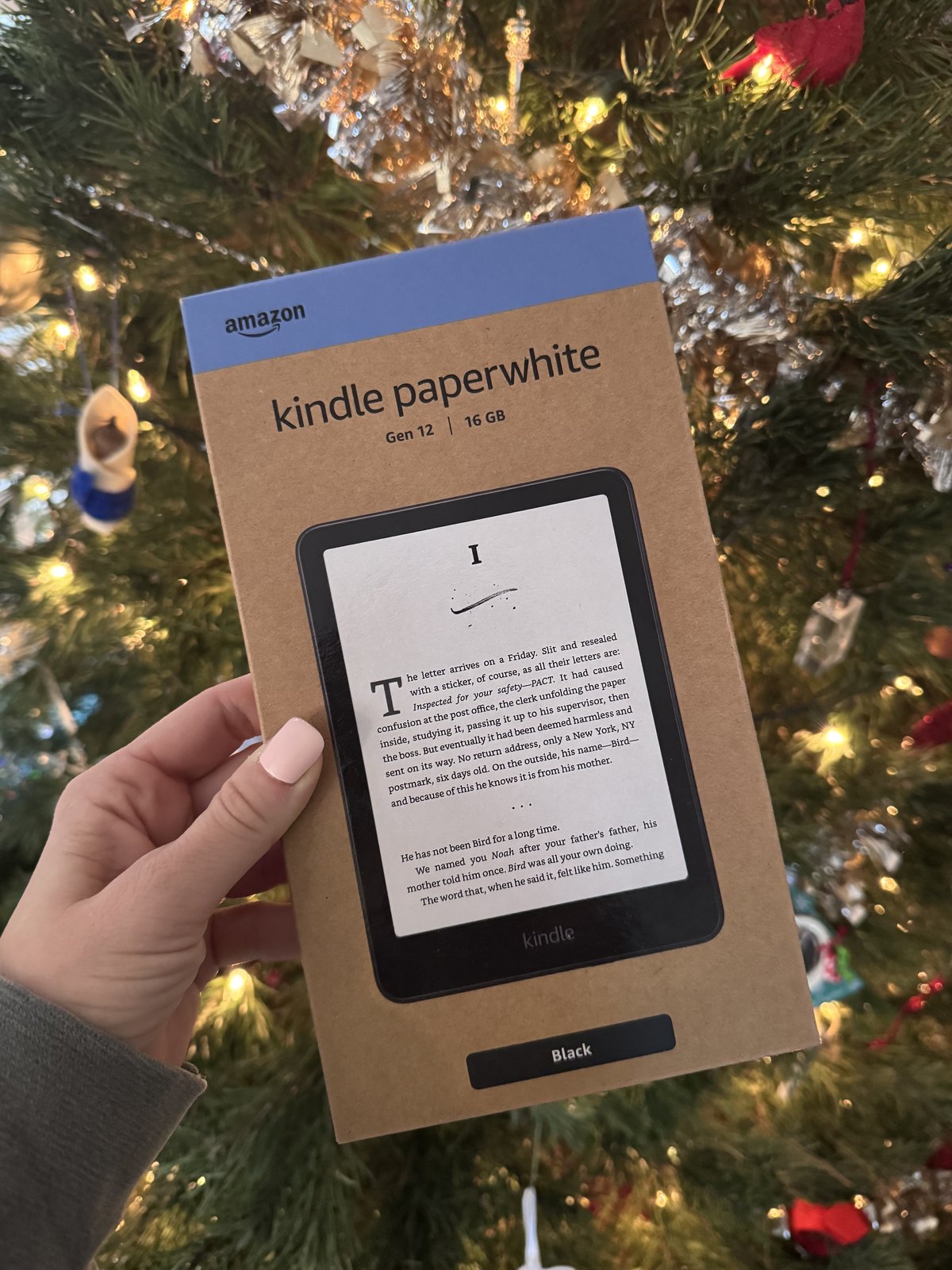
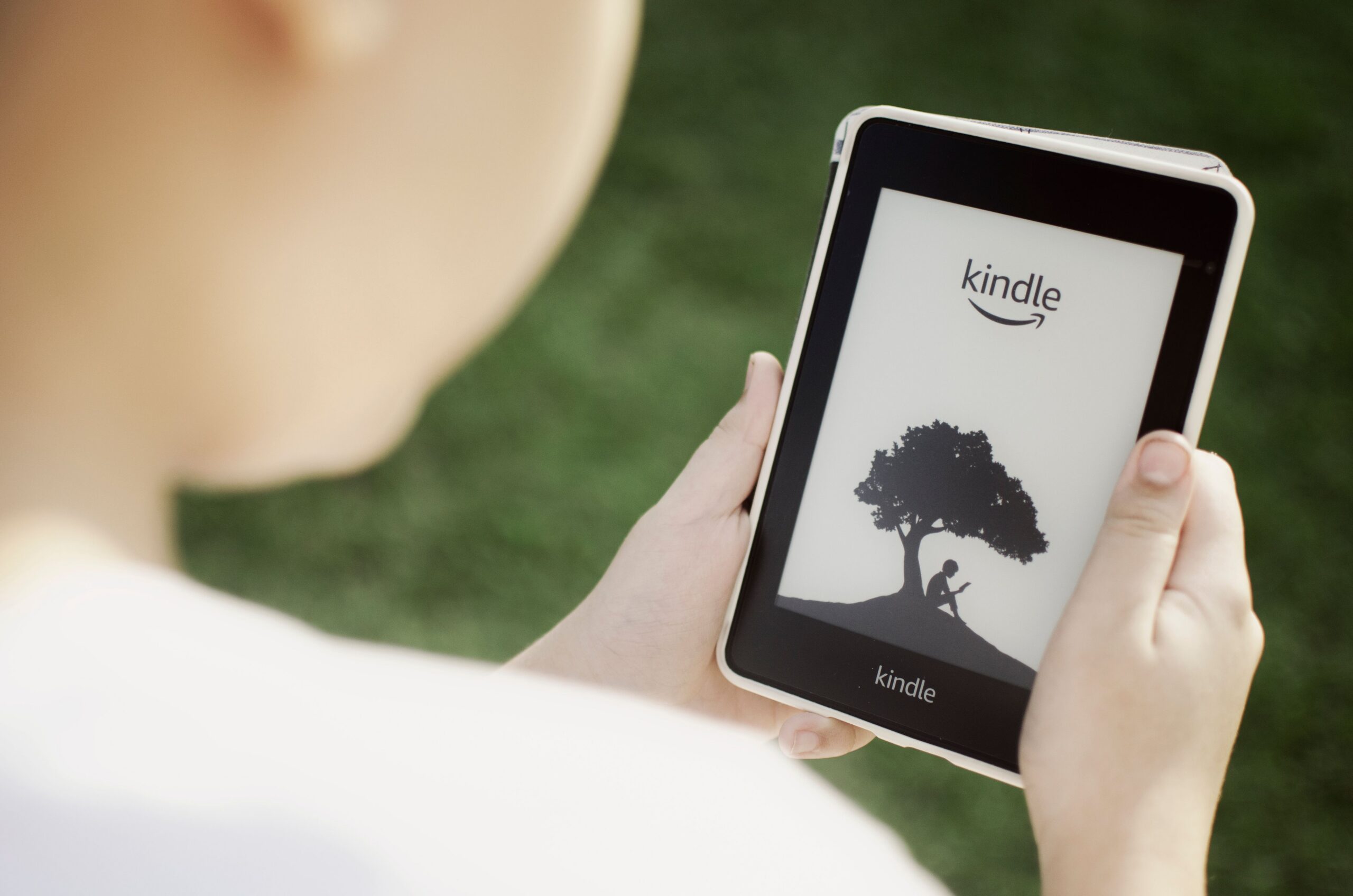
Free library books on your Kindle is the single best feature of owning one, and I’d guess half the people who got a Kindle this Christmas have no idea it exists. You don’t need a subscription. You don’t need to plug anything in. You need a library card and about ten minutes.
This matters more this year than last, honestly. Amazon raised Kindle prices by $40 to $50 across the lineup in August 2026, blaming memory chip costs. If you just spent more on the device than you expected to, the least it can do is hand you unlimited free books.
Here’s the whole thing, including the part nobody tells you: what to do when every book you want has a twelve-week wait.
First, check your Kindle still qualifies · What you need · The actual steps · Returning and renewing · When there’s a wait · Getting a second library card · Hoopla and the other apps · Library vs Kindle Unlimited · Sending your own files · FAQ
Do this before anything else, especially if your Kindle was a hand-me-down.
On May 20, 2026, Amazon ended support for Kindle e-readers released in 2012 or earlier. On those devices you can no longer purchase, borrow, or download new books — which means library borrowing simply will not work, and no amount of troubleshooting will fix it. The nine affected models, per Amazon’s own support page:
Read that last one carefully, because it trips everyone up. “Paperwhite 5th Generation” is the 2012 Paperwhite. It is not the Paperwhite you’d buy today, which is the 12th generation. If someone handed you a Paperwhite, check the generation, not the name — Amazon has an “Identify your Kindle” page linked from that support article.
Books already downloaded to an affected device still open, as long as you don’t deregister it or factory-reset it. But it’s a reading-what-you-have device now, not a borrowing one.
Every Kindle released after 2012 works fine, including the current Paperwhite, the base Kindle, the Paperwhite Signature Edition, Colorsoft and Scribe.
Three things, and two of them you already have.
Do not go looking for a Libby app on the Kindle itself. Kindle e-readers don’t run apps. You borrow in Libby on your phone, and Amazon delivers the book to your Kindle over Wi-Fi. That’s the part that confuses people most, and once it clicks the rest is easy.
One catch worth knowing up front: the Kindle option is US-only. Libby’s own help says it plainly — Kindle Books are available for US libraries only, and if your library is outside the US you won’t even see the setting. Everyone else reads inside the Libby app instead.
Set-up first, one time only:
Then, for every book you borrow:
The book shows up on your Kindle the next time it’s on Wi-Fi. That’s it — that’s the whole thing. (These steps are straight from Libby’s own help page, which was last updated in September 2026, so they’re current.)
If “Kindle” doesn’t appear as an option, it’s almost always one of three things: the book isn’t offered in Kindle format by your library, you already downloaded it as an EPUB inside Libby (you’d need to return and re-borrow), or your reading preference is set to Libby instead of Kindle. You can change that default under Libby’s settings so every future book goes to your Kindle automatically.
You never owe a late fee. Kindle library books return themselves automatically at the end of the lending period. The book just stops opening. Nothing to remember, nothing to pay.
Returning early is the one genuinely awkward part. You can’t return a Kindle loan from inside Libby, which drives people a little crazy. You do it either on Amazon — Your Books, tap the cover, then the three dots, then Return borrowed book — or right on the Kindle by opening the menu on the book cover and choosing Remove from Library. Do return early when you finish something; it moves the line along for whoever’s waiting.
Renewing: Libby lets you renew a title a few days before it’s due, under Shelf → Loans → Manage Loan → Renew Loan. You’ll see a lot of blog posts claiming it’s exactly three days and only if nobody’s waiting — Libby’s own current help page says neither of those things, so I’m not going to repeat them as fact.
And one myth to put down: if you’ve read an older tip about putting your Kindle in airplane mode to keep an expired loan, that stopped working on newer Kindles in 2026. It’s all over Pinterest and it’ll just waste your time.
This is where most people give up on Libby, and it’s completely avoidable. Five things that actually work:
Libraries set aside extra copies with no waitlist at all, marked with a little shamrock. Search “skip the line” under Catalog Filters. The trade-off: they can’t be renewed and the loan period is often shorter. If you’d rather have the full loan period, you can place a hold on the regular copy instead.
Filter any search or list by available now and skip the waiting entirely. Obvious once you know it’s there, invisible until then.
If you’ve got eleven holds and they’re all going to land the same week, Suspend keeps your place in line while the copy goes to the next person. It used to be called “Deliver Later.”
One change that catches people: suspended holds no longer unsuspend themselves. You have to do it manually, and Libby cancels a hold you’ve left suspended for a year.
For books your library doesn’t own at all. Search the full title and author, scroll to the bottom of the results, tap deep search, then Notify Me. If your library buys it later, you get told. Not every library offers this.
The big one. Libby holds multiple library cards at once, from multiple systems, and searches across all of them. Two cards roughly halves your waiting.
This got easier in September 2026: OverDrive rebuilt how partner libraries work, so systems that share collections now show up automatically under “Partner Libraries” in the Libby menu — no manually adding cards. Go look; you may already have access to more than you think.
Some libraries issue cards to people who don’t live there. This is the real unlock if your local system is small — but almost every list of these floating around Pinterest is years out of date, so I checked each one on the library’s own site in September 2026.
Several big systems run “Books Unbanned” programs giving free nationwide digital cards to young readers. There is no free out-of-state adult card at any library I checked. But if you have a teenager, these are excellent:
These four take an online application and a yearly fee, no visit required. Annual fees currently run from the high thirties to around a hundred dollars depending on the system — check each one, because they change:
Heads up on Queens: one of their own older pages still describes the eCard as free and open to anyone. Their current fee schedule and live application say otherwise. Go by the application.
This is the part other posts get wrong, and it’ll save you an afternoon:
Short version: Libby is the only one that reaches a Kindle. Knowing that saves you downloading four apps to find out.
Hoopla can’t put ebooks on a Kindle e-reader. It uses Adobe’s DRM and Kindles only speak Amazon’s, so there’s no bridge. You read Hoopla in its own app on a phone, tablet or browser — or on a Fire tablet, which runs both apps happily.
That said, Hoopla is genuinely worth having for a different reason: no waitlists. The whole catalogue is available immediately, with a monthly borrow limit your library sets. It’s the perfect complement to Libby — Libby for the Kindle, Hoopla for when you want something right now and everything’s on hold.
Palace Project and cloudLibrary are worth knowing by name because some library systems use them instead of Libby. Neither sends to Kindle either. And Kanopy is films and TV, not books — free through a lot of libraries and a nice thing to know about, just not for your Kindle.
People ask this constantly, usually hoping the answer is “cancel the subscription.” Sometimes it is. Sometimes it isn’t.
| Your library (Libby) | Kindle Unlimited | |
|---|---|---|
| Cost | Free | A monthly subscription — check the current rate |
| Waiting | Holds, often weeks | None, borrow instantly |
| At once | Your library sets the limit | 20 titles |
| New bestsellers | Yes — it’s what libraries buy | Mostly no |
| Indie and genre fiction | Patchy | Very deep — millions of titles |
| Audiobooks | Yes, strong selection | Yes, a smaller one |
The honest answer: they’re not really competitors. If you read three romance or cozy mystery novels a week, Kindle Unlimited’s catalogue is deep in exactly that direction and the math works out. If you want the literary novel everyone’s posting about, the library has it and KU almost certainly doesn’t.
One recent change if you’re already subscribed: as of April 2026, magazine issues you borrow through Kindle Unlimited count toward your 20-title limit. They didn’t used to. If you’ve been stockpiling magazines and wondering why you can’t borrow anything, that’s why.
Separate from the library, and useful: Send to Kindle pushes your own documents onto the device. Amazon currently lists support for EPUB, PDF, TXT, RTF, HTML and common image formats, up to 200 MB through Send to Kindle for Web.
EPUB is the one worth knowing about — if you’ve collected free public-domain ebooks from somewhere like Project Gutenberg, they’ll go straight across. Turn on “Add to your library” when you send, so documents sync to all your devices instead of living on one.
Worth noting: Word documents are not on Amazon’s current supported list, even though plenty of guides still say they are.
And if you’ve read that Amazon removed “Download & Transfer via USB” back in February 2025 and worried it affected library books — it didn’t. Library borrowing was always wireless. That change only mattered to people archiving purchased books to a computer.
Yes. Free card, free app, no fees, and no late charges because the books return themselves. Your library already paid for the licenses with tax money you’ve already spent.
To receive the book, yes. Once it’s downloaded you can read anywhere — on a plane, in the car, wherever. Just get it onto the device before you leave.
Not to the Kindle itself. The Kindle format is licensed for US libraries only, and the option won’t even appear if your library is elsewhere. You can still borrow and read in the Libby app.
They’re saved to your Amazon account, and if you borrow or buy the book again later they come back. Losing the loan doesn’t lose your notes.
You can sign in on multiple devices with the same card, but you’ll share the same loans and holds. If two people in the house read seriously, get each of them their own card — and remember Libby holds several cards at once.
The opposite, mostly. Libraries buy ebook licenses at a significant markup over consumer prices and replace them regularly, so a heavily-borrowed book earns real money. Borrowing also counts toward the demand data libraries use to decide what to buy next.
Set up Libby tonight, add your card, and change your reading preference to Kindle so every book goes across automatically from here on. Then add a second library card when you get a spare ten minutes — that one change does more for your hold times than anything else on this list.
Still figuring out the Kindle itself? We’ve rounded up a few Amazon finds worth knowing about, and if you’re shopping for someone else, the 2026 Holiday Gift Guide has 262 hand-checked picks.
Kindle prices move around a lot right now. Come hang out in our Simply Sales Facebook group — 75,000 deal-hunters strong — where we post the drops as we spot them.
👉 And the free Simply Picks app tracks prices daily and tells you the moment a Kindle actually drops. Grab it here — it’s free.